Anyone who follows money news knows the feeling. A crypto exchange posts a long explainer on how fees work, a central bank uploads a talk on interest rates, a finance creator breaks down a tax change. You mean to watch it properly, then the week fills up and the tab stays open for days. The clips that matter most are often forty minutes of talking, not charts, which makes them a better fit for your ears on a bus than for a screen at your desk.
This article walks through one practical routine for that, using a free tool for saving public explainers as MP3 or MP4, based on what EzyDownload states on its public pages as read on 13 November 2026. It is a usage guide, not investment advice, and nothing here tells you what to buy or sell.
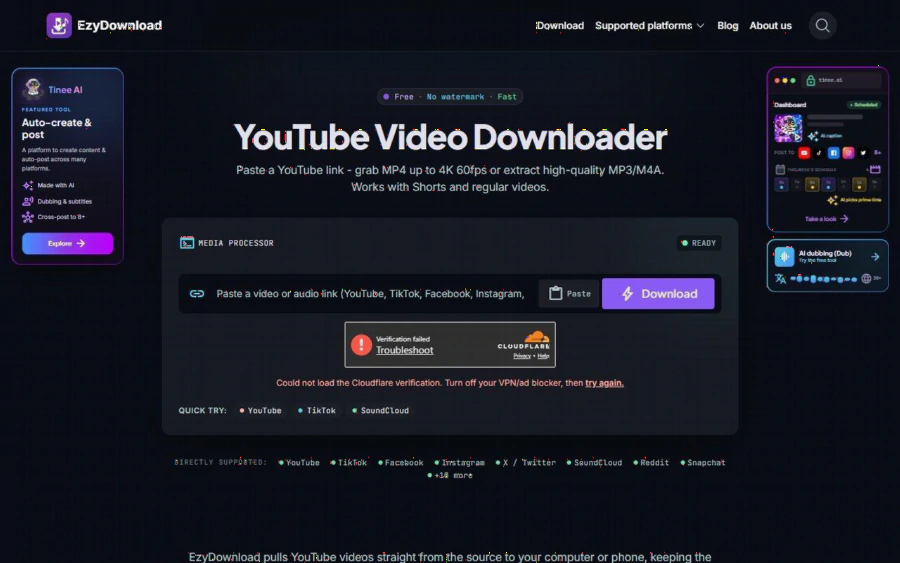
EzyDownload YouTube downloader page with a link box, a Paste button, a Download button and a list of directly supported platforms
A situation to picture (an illustration, not a real customer)
Imagine a part-time bookkeeper named Lan, invented for this example. She commutes about 50 minutes each way. She has a list of public videos she wants to catch up on: a tax office webinar recorded for small businesses, a long interview with an economist, and two exchange-run tutorials on how withdrawals and network fees are calculated.
Her phone data plan is limited and the train line has patchy signal. Streaming video for 50 minutes is out. What she needs is a small audio file she can download once on home Wi-Fi and play offline. She does not want to create another account, install an app, or give out her email just to do that.
That is the exact gap a paste-a-link downloader fills, and it is why this article focuses on audio rather than on 4K video.
What EzyDownload says it does
According to its homepage, the flow has four plain steps: copy the link from the source platform, paste it into the box, choose a format and quality, then download. The page states that it works in the browser on desktop and on phones (iOS and Android), with no app or extension to install.
On platforms, the site lists more than 18, with YouTube, TikTok, Facebook, Instagram, X, SoundCloud, Reddit and Snapchat shown as directly supported. On formats, it lists MP4 video up to 4K (2160p) at 60 fps when the source offers it, and audio as MP3 or M4A up to 320 kbps, with title, artist and cover art kept as metadata where available.
On price, the homepage and FAQ describe the tool as completely free, with no paid plan, no sign-up and no email required. The site also says it does not store files on its servers.
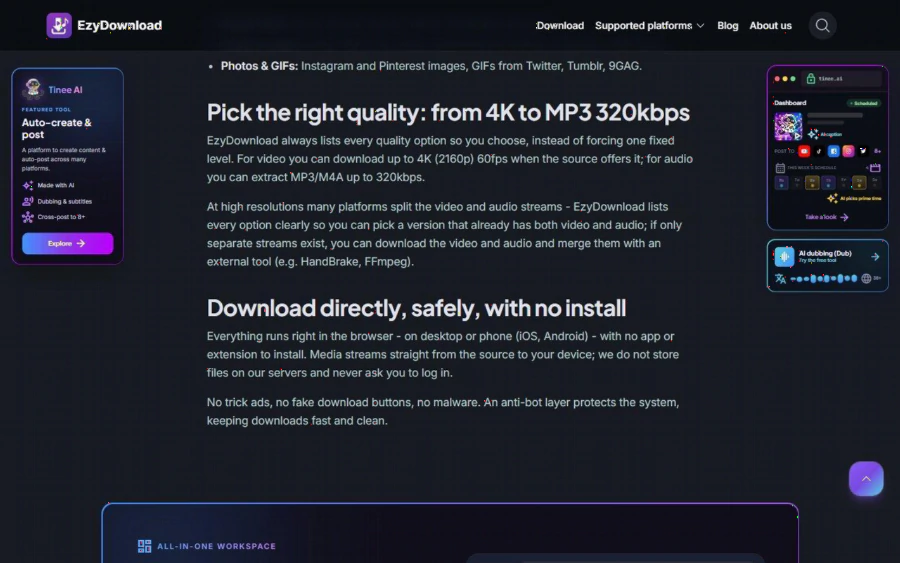
EzyDownload page section explaining quality options from 4K video down to MP3 at 320 kbps and running in the browser with no install
Why audio quality settings matter for talk-heavy finance clips
For a spoken explainer, the picture adds little. The useful parts are the voice and any numbers the speaker reads out. That changes which setting you pick.
The site lists 320, 192 and 128 kbps options. For a long interview, a lower bitrate keeps the file small, which helps if your phone storage is nearly full. For a lecture with figures read aloud, a higher bitrate is worth the extra megabytes because the voice stays clear at speed. A sensible habit is to try 128 kbps on a single talk first and step up only if the voice sounds muddy on your earphones.
If you do want the slides or a chart, choose MP4 instead. The homepage notes that at high resolutions many platforms split video and audio into separate streams. EzyDownload says it lists every option so you can pick a version that already has both. If only separate streams exist, it suggests merging them with an outside tool such as HandBrake or FFmpeg. For a commute, 720p is usually plenty, and a smaller file saves your battery too.
A simple weekly routine
Here is the routine Lan might follow, which you can copy or adjust:
1. On Sunday evening, collect the public links you want to catch up on and paste them into a note.
2. At home on Wi-Fi, open the downloader, paste one link at a time and choose MP3 for talks, MP4 for anything with charts.
3. Rename each file with the date and speaker so the folder stays readable.
4. Keep a second note of timestamps and figures you want to verify against the original source or an official publication.
5. Delete the files once you have listened, so the folder never becomes a graveyard of good intentions.
Step four deserves emphasis. Spoken explainers are summaries, and creators get things wrong or go out of date. Treat the file as a way to listen, not as a source to quote. If a number matters for a tax return or a transaction, check it on the official page.
What it does well
Based on the public pages, the strengths are practical rather than flashy.
- There is no account step, so nothing lands in your inbox afterward.
- It shows quality choices instead of forcing one fixed output.
- It covers many platforms in one place, so you do not need a different saver for a YouTube talk and a SoundCloud podcast.
- It runs in a mobile browser, which suits a quick save from your phone.
- It is free, which removes the usual question of whether a tiny task is worth a subscription.
Limits you should know before relying on it
No tool fits every job, and this one has clear edges.
First, it handles public media only. The site states that private accounts, paywalled content and DRM-protected material are not supported. A members-only webinar, a paid course or a broker's gated research video will not work, and you should not try to get around that.
Second, quality depends on the source. The 4K and 320 kbps figures are ceilings, not guarantees. A video uploaded at 480p will not become sharper.
Third, a verification step can get in the way. When I loaded the homepage for the screenshots above, the page showed a Cloudflare check that failed to load and asked me to turn off a VPN or ad blocker before trying again. That is common with anti-bot layers, and it was easy to understand, but it is worth knowing if you use a VPN for work. If the box refuses to respond, disable the blocker for that tab and reload.
Fourth, the page also carries promotion for a separate product called Tinee AI, plus a sponsor link in the footer that the site describes as user-submitted. Treat those as ads, and do not click anything you did not intend to.
Finally, rights still apply. Saving a clip for your own offline listening is different from re-posting it. If you plan to share or reuse a video, check the creator's terms and ask permission first.
Who should use it, and who should skip it
It suits freelancers, students, small business owners and anyone who learns by listening and wants public talks available offline. It is a good fit for people who dislike installing apps or handing over an email for a one-off task.
It is a poor fit if you need a bulk archive of hundreds of videos, if the material sits behind a login, or if your workplace blocks downloads on managed devices. In that last case, follow your employer's policy, not a web page.
How to start in two minutes
Open the homepage, copy the link of a public video you are allowed to save, paste it in, pick MP3 or MP4, and download. Try it first on something low stakes, such as a public lecture you already planned to watch. Check the file plays on your phone before you rely on it for a long trip. If the experience matches the description above, you have a free habit that turns dead tabs into time you already spend waiting.